Extension for Chrome, Edge, Brave, Opera and more
Keep videos for offline viewing
Save your recordings and videos you have permission to download. MP4, WebM, HLS/DASH streams and HLS live recording. Separate audio and video are merged in Pro and the trial; Free saves them separately. YouTube and DRM are not supported.
Chrome, Edge, Brave and more — one-click install from the Chrome Web Store. Beta in progress: every Pro feature is free until December 31, 2026.
Three steps from player to file
- 1
Hover over the video
A red Download button appears in the corner of the player. No need to open the extension.
- 2
Click and pick a quality
One click saves in your default quality. The arrow next to it lists every option, from 360p to 4K.
- 3
Open the saved file
Saved files appear in Downloads. Free may save separate audio and video tracks. The icon shows progress and a notification tells you when it is ready.
Everything it takes to keep the video
A button right on the player
Appears when you hover over supported video players, where the site allows an overlay button.
Record live streams
Records HLS and DASH broadcasts until Stop and save or the configured auto-stop. If the stream changes its parameters the recording continues as the next part; if it freezes, what was recorded is saved. Free is limited to 15 minutes.
Several downloads at once
Each one shows a live preview, speed and time left. The rest wait in a queue and start on their own.
Sound and picture in one file
Pro and the trial join compatible separate audio and video tracks without re-encoding. Free saves the tracks separately.
Resume interrupted downloads
Sites hand out temporary access to video. If a site still grants access, Vidsavo attempts to refresh the link and continue.
HLS and DASH streams
Assembles accessible HLS and DASH streams from segments and lets you choose quality. Does not bypass DRM.
Settings your way
Folder and file name, default quality, live auto-stop, button position on the player, language. Saved instantly, with a backup file.
Keyboard shortcut
Saves the video on the open page without a single window. A check mark flashes on the icon and the rest happens by itself.
Tab recording (Pro)
The fallback when a stream cannot be downloaded directly: the extension records the tab's video and audio to a file. A recording survives a browser crash — the saved part is restored.
What it looks like
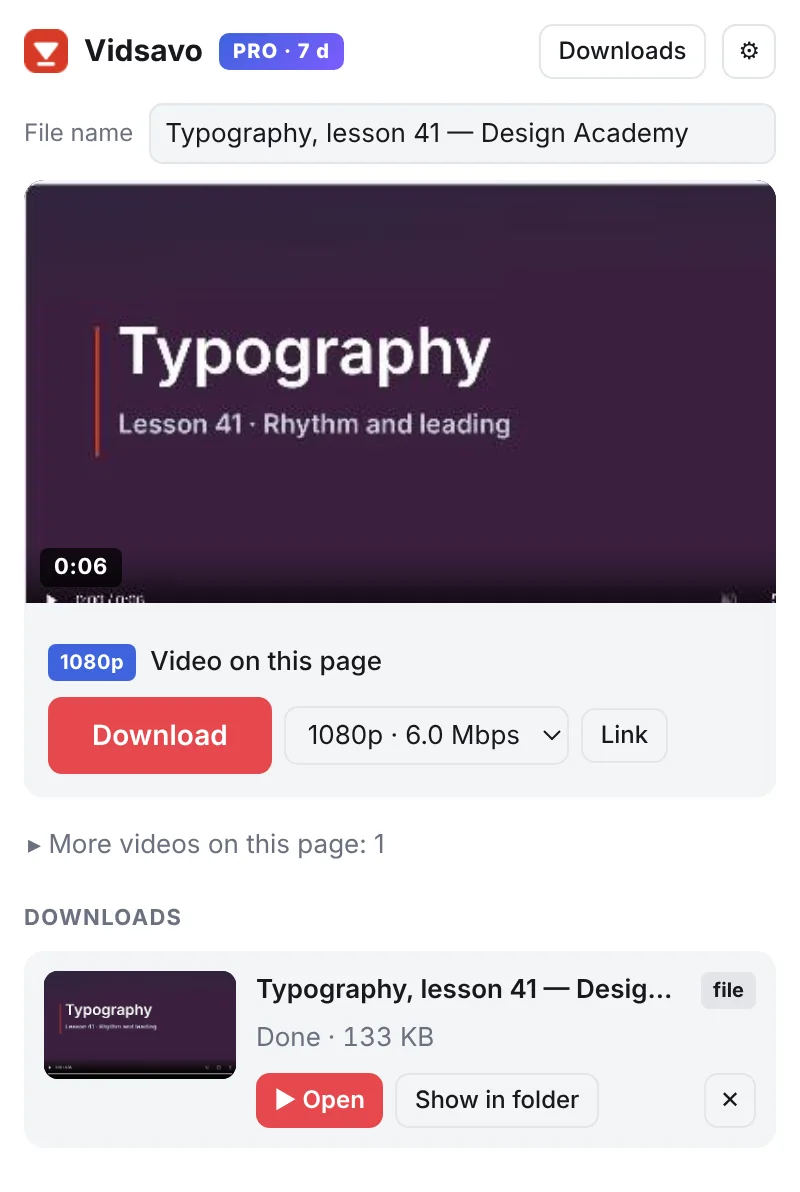
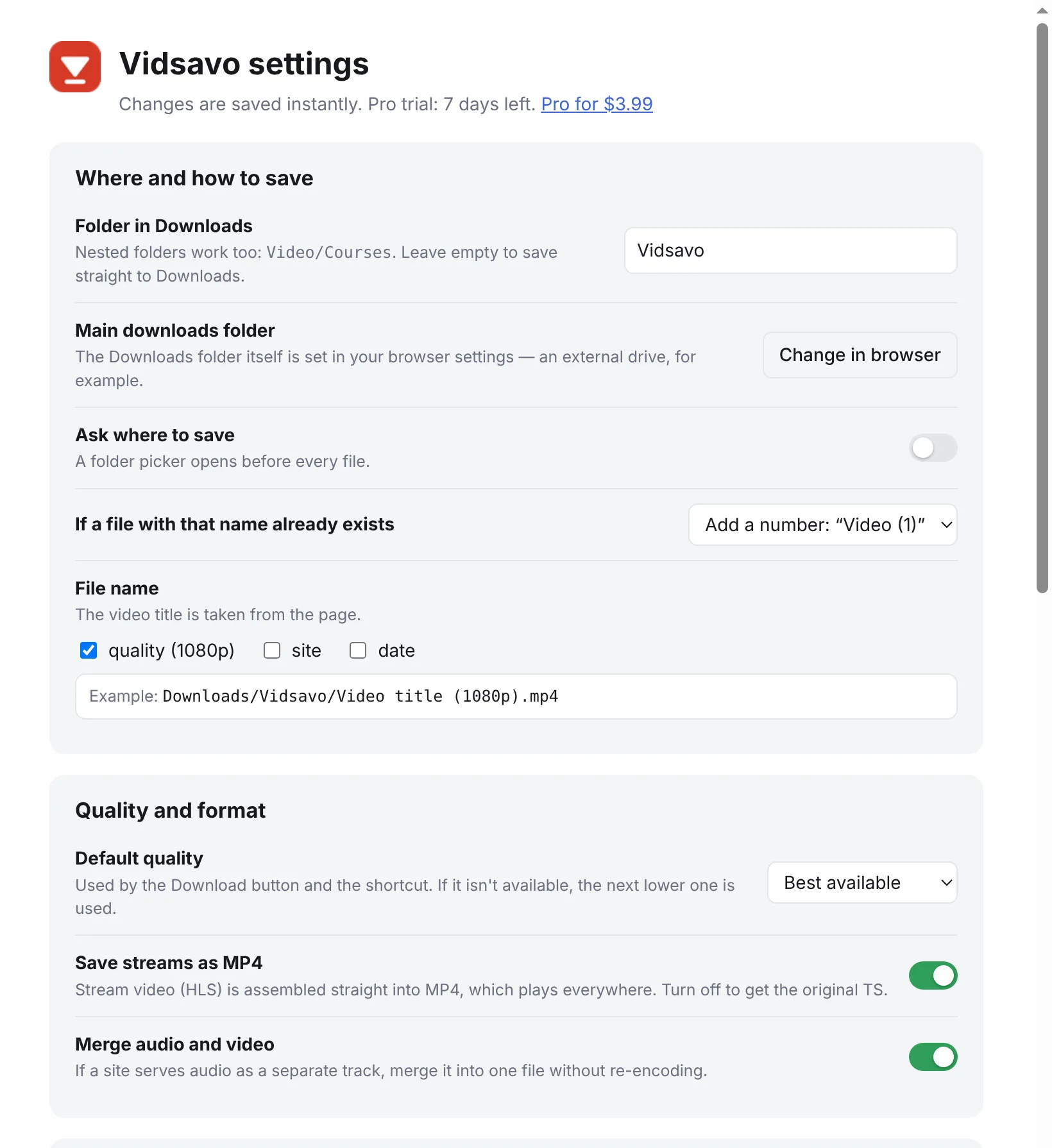
Beta: everything is free. Then Free or one-time Pro
Until December 31, 2026 every Pro feature is open to everyone — no card, no auto-charges. After the beta everyone gets 7 more days of Pro, then the free plan remains. Pro will be available as a one-time purchase, without a subscription, while the service operates.
Free
$0
- All of Pro during the beta
- Then 2 downloads at a time
- Up to 1080p
- Live recording up to 15 minutes
- Player button, shortcut, MP4
Pro one-time
$3.99one time
- Up to 6 downloads at a time with twice the connections
- Any quality, including 4K
- No fixed live recording time limit
- Sound and picture in one file
- Pause and resume downloads
- One key for up to 3 computers
No purchase needed during the beta: everything is open until December 31, 2026. Afterwards Pro can be bought right inside the extension.
Free and Pro
| Free | Pro | |
|---|---|---|
| Downloads at a time | 2 | 6 |
| Connections | 8 | 16 |
| Quality | up to 1080p | any, including 4K |
| Live recording | up to 15 minutes | unlimited |
| Sound and picture in one file | — | ✓ |
| Pause and resume | — | ✓ |
| Tab recording (fallback) | — | ✓ |
| HLS, DASH, MP4, player button, settings | ✓ | ✓ |
Set up in a minute
- Click the button to open Vidsavo in the Chrome Web Store, press Add to Chrome and confirm.
- Pin the Vidsavo icon to the toolbar (puzzle icon → pin) so it is always at hand.
- Open a page with a video: a red Download button appears on the player. Updates arrive on their own.
Questions
Which sites does it work on?
Most sites that play video in an embedded player: course platforms, news, live broadcasts, sites with direct MP4 links and HLS or DASH streams. It does not download DRM-protected video (streaming services) or YouTube. Compatibility varies by site.
Can I choose the folder and file name?
Yes. Settings let you pick a folder inside Downloads (nested ones too, like Video/Courses) and add quality, site and date to the file name. Turn on Ask where to save to choose any folder each time — even on an external drive.
What languages is it in?
English and Russian. It follows your browser language, and you can switch it in settings.
What if I close the tab or my connection is slow?
Closing a video tab does not stop an active download. Unfinished downloads are restored after a browser restart and continue from the saved point; live streams are not recorded while the browser is closed. A slow live stream can have gaps, which are reported in the result.
Is this allowed?
Save video you have the rights to: your own recordings, course materials whose owners allow downloads, and video whose license permits saving. The owner and the site set the rules for each video.
What happens after the beta?
Everything stays open until the beta ends, then everyone gets 7 more days of Pro. After that the extension switches to the free plan on its own: 2 downloads at a time, up to 1080p, live recording up to 15 minutes. Everything you saved stays yours. After the beta, Pro can be purchased in the extension.
Is it safe to install?
The extension runs in your browser and never sends your videos or browsing history anywhere. It is available in the Chrome Web Store, where updates are delivered automatically. Install Vidsavo only from its official store listing.
How do I move Pro to another computer?
A key works on three computers. It arrives by email after purchase — enter it on the Pro page. To free a slot, choose Unlink from this browser on the old computer.
Video saving and stream guides
Practical explanations of streaming formats and ways to save content you are entitled to download. Learn what HLS and DASH files mean, how audio tracks work, and how to record permitted live streams.
Already using Vidsavo? Share your honest feedback. If anything breaks, contact support.